Seam Studio
A canvas for creative AI tools. Every generation stays on the canvas, so you can branch from any output and iterate without losing the thread.
- When
- 2025
- Team
- Yoon Bae
- Status
- Prototyped
The problem
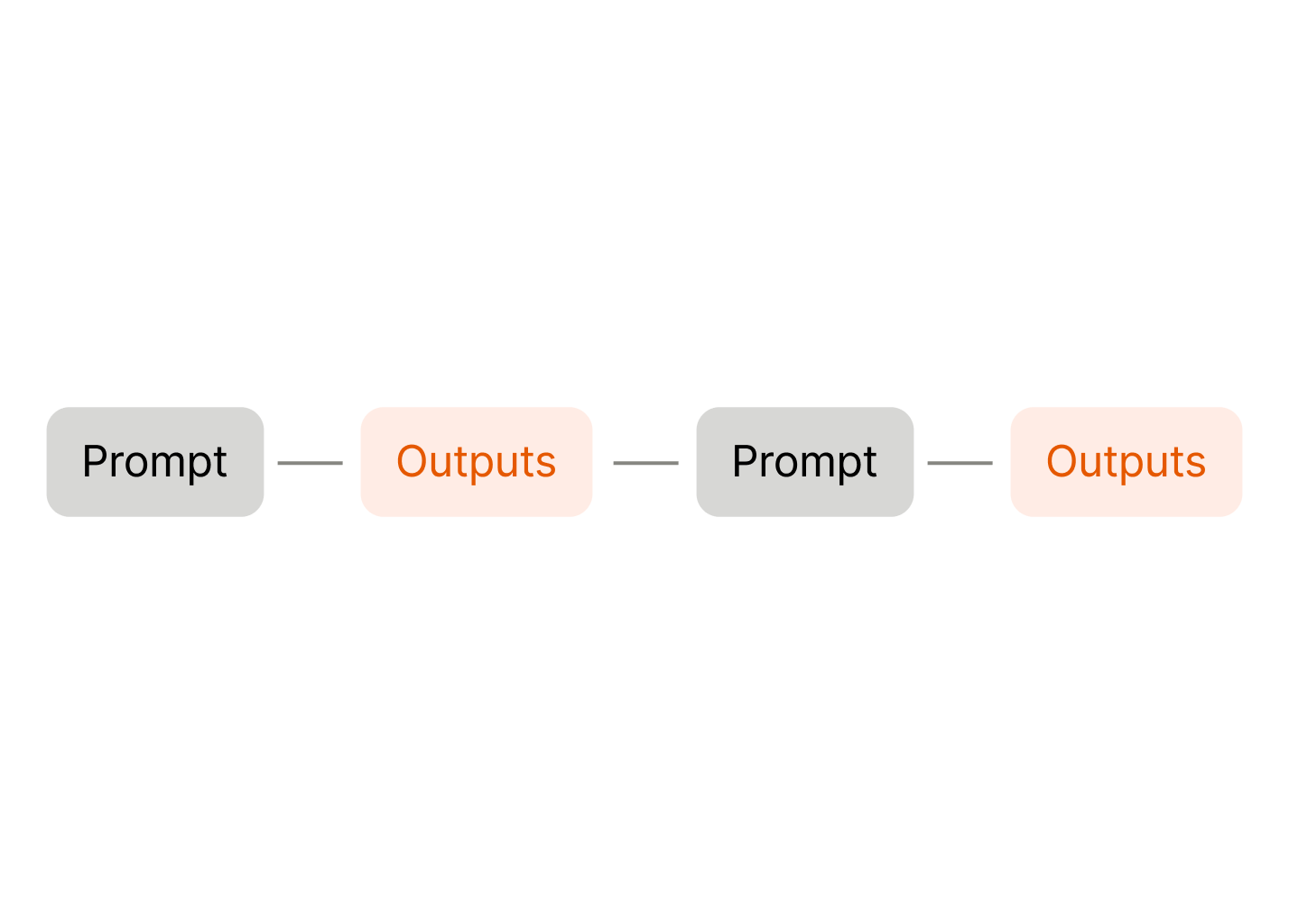
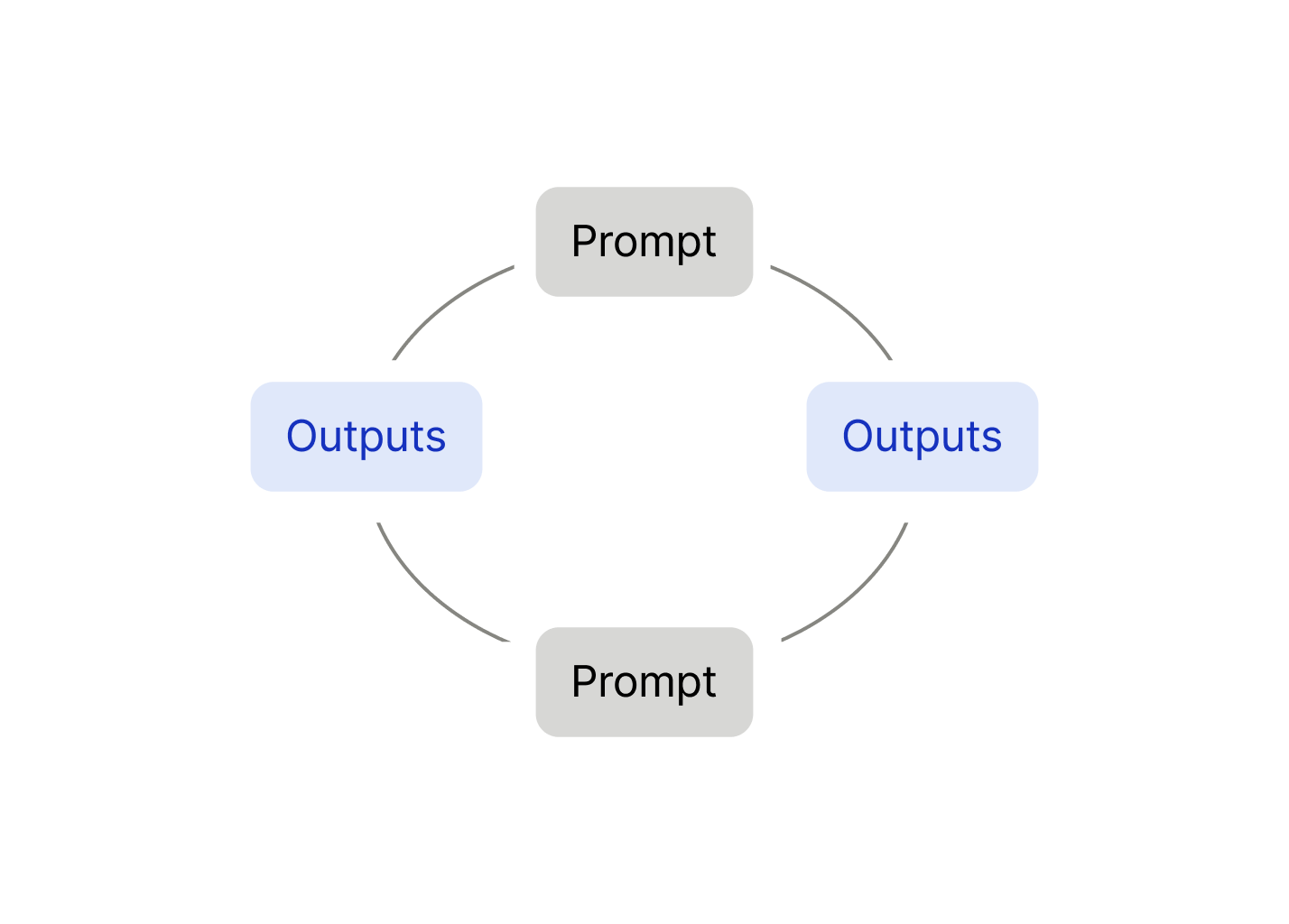
Users spend too much time stuck in a linear interface with the chat when creating artwork. It is hard to iterate with multiple outputs at the same time.
Our solution
Canvas like interface that can make artwork creation into a seamless workflow. Iterate multiple versions with infinite branching.
AI tools should feel like natural extensions of how people already work. Most AI tools have a chatbot interface, which forces designers to interact with linear and rigid interfaces that break their natural workflow. So I created a better way for the creatives to interact with creative AI tools.
With Seam Studio, every generation stays visible on the canvas. Nothing gets lost by the next prompt. From one source infinite iterations can stem out. A new idea you might want to try on the AI output you got two sessions ago, just drag that exact source out and iterate right away, not having to prompt the model to reference that specific output.
What’s wrong
A lot of time went into prompting and re-prompting. But one attempts was buried under the next one, there was not way to trace back and actually find out.
What I needed to do
The app needed to keep every generation visible on a persistent canvas so nothing disappears mid-iteration, make the relationship between an output and what led to it traceable. I needed to allow direct editing of a result rather than only re-prompting, and easy to iterate on multiple output at a time.
Faster reference
Previous outcomes remain visible and accessible
Better version control
Users can branch from any place in the canvas
Natural workflow
Matches how designers already think spatially
1. Generate
2. Branch
3. Extract style
4. Direct edit
Design
Pill
Controling output and preferences are made easy using a pill that follows the prompt bar. Instead of going to a different tab or setting to configure the output, it is made easy to do all with a few clicks on the pill.
Project setup
Have different pages within each project to isolate certain work from others, keep track of inputs sources in library, and get access to prompt history.
Add files
Add files and write instructions for agent to reference. Add brand guidelines, specific instructions, and resources.
Edit visuals
Edit the workspace right from the panel to quickly edit visuals without prompt.
Reflections
The project began out of frustration with creating design assets using AI software. That frustration opened up a wider questions. Some of it involved UX and performance edge cases, and some involved actual product implementation. This project taught me that good UX isn’t about replacing existing tools and It’s about enhancing existing workflows.